
File Splice vs Adobe Acrobat
For combining, merging, and organizing PDF files which tool makes the most sense for you?

If you need to combine, merge, impose, collate, bundle, or mail merge PDFs. Especially for print-ready work, batch jobs, or variable data File Splice does it better and costs about 25× less than Adobe Acrobat Pro.
If you need to edit text inside an existing PDF, redact content, add legally binding e-signatures, or use OCR on scanned documents, Adobe Acrobat is the more capable tool and the cost may be justified.
Most people end up with Adobe Acrobat not because they researched it, but because it was already on their computer or came bundled with Creative Cloud. That familiarity has a real cost: Acrobat Pro runs $239.88 per year, and a huge portion of that subscription covers tools the average user never touches. If what you actually need day-to-day is a reliable way to combine and organize PDFs, there’s a much cheaper path.
Let’s break down the real differences between File Splice and Adobe Acrobat, not a spec sheet, but a practical look at which jobs each tool handles well and which one makes sense for your situation.
The Price Gap Is Not Small
Adobe Acrobat Pro has gradually moved away from one-time licenses and now operates almost entirely on subscriptions. File Splice has always been simple monthly subscription with no contracts.
That’s a $180 annual difference, roughly 75% savings for a user whose main need is combining, merging, and organizing PDFs. Adobe also charges $29.99/month for month-to-month billing. File Splice has no such penalty.
Feature Comparison
These two tools don’t fully overlap, they’re built for different primary jobs. With that said though, here’s how the overlapping capabilities stack up side by side.
| Feature | File Splice | Adobe Acrobat Pro |
|---|---|---|
| Combine / merge PDFs | Yes — collate tool with drag-and-drop | Yes |
| PDF imposition (N-up, cut-and-stack, step & repeat) | Yes — core feature, built specifically for this | No — not supported |
| Mail merge / variable data (CSV to PDF) | Yes — integrated with imposition tool | Limited — basic only, no imposition |
| Mix PDFs, JPGs, and PNGs in one job | Yes — all file types in same workflow | Limited |
| Split PDFs | Yes — extract pages, send to collate tool | Yes |
| Add pages into existing PDFs | Yes — insert cover/slip sheets at any interval | Yes |
| Crop marks, bleed & overages for print | Yes — designed for print-ready output | No — not in standard workflow |
| Mixed-size file packing (packable mode) | Yes — unique rectangle-packing algorithm | No — not available |
| Edit text inside a PDF | No — not supported, yet | Yes — Acrobat’s core strength |
| Redact sensitive content | No — not supported, yet | Yes |
| E-signatures (legally binding) | No — not supported, yet | Yes — via Acrobat Sign |
| OCR (make scanned PDFs searchable) | No — not supported, yet | Yes |
| Variable Quantities | Yes — merge files with variable quantities with overage adjustments | No |
| Cover Sheets / Slip Sheets | Yes — insert cover sheets with order numbers for easy collating or custom slip sheets | No |
| API access for automation | Yes — included with all plans | Yes — via Adobe PDF Services API |
| FTP / bulk upload | Yes | No |
| Browser-based, nothing to install | Yes — works on any device | Partial — some features need desktop app |
| Team accounts | Yes — $2.99/mo per additional user | $23.99/mo per user (Pro for Teams) |
| Free setup and ongoing support | Always included | Varies by plan |
Who Should Use Which Tool
The honest answer is that for most users, these tools solve different problems. Picking the right one mostly comes down to what your actual day-to-day work looks like.
- Run a print shop or in-house print department
- Need to impose files N-up or in cut-and-stack layout
- Do batch mail merge or variable data jobs
- Collate handouts, packets, or document bundles regularly
- Work in fulfillment, mailing, or operations
- Need to combine mixed file types (PDF, JPG, PNG) in one job
- Want print-ready output with crop marks and bleed
- Are a teacher, admin, or coordinator managing document packets
- Want API access without enterprise pricing
- Need a team solution without per-seat sticker shock
- Need to edit or rewrite text inside existing PDFs
- Handle legally binding e-signatures regularly
- Work with scanned documents that need OCR
- Need to redact or permanently remove sensitive content
- Require deep Microsoft Office or SharePoint integration
- Work in enterprise legal, compliance, or government
- Already pay for Creative Cloud and Acrobat is bundled in
- Need advanced PDF accessibility and standards compliance
When It Comes to Combining and Merging, the Tools Aren’t Equal
Adobe Acrobat can combine PDFs. You can drag files into the Combine Files interface and get a merged result. For basic use it works fine. But it’s a general-purpose feature in a general-purpose tool, and that shows when jobs get more complex.
What File Splice does differently
File Splice’s collate tool was built from the ground up for combining files, not bolted onto a PDF editor. You can mix PDFs, JPGs, and PNGs in the same job, duplicate pages on the fly, and pull output directly from the splitter tool into a new bundle.
The imposition layer is what really sets it apart. Instead of a merged document, you get a print-ready sheet — multiple items per page, laid out with crop marks, bleed, and exact quantities. Acrobat simply doesn’t have this.
Where Acrobat still has the edge
After combining files, Acrobat lets you edit the result — fix a wrong page number, update a name, remove a paragraph. That’s a real advantage when you’re assembling and fixing documents at the same time.
For legal and compliance teams, the ability to redact, certify, or add binding signatures to a combined document in the same application is genuinely valuable and hard to replicate elsewhere.

Mail Merge: Adobe Doesn’t Really Compete Here
Adobe Acrobat has basic form-filling capability, but it isn’t a mail merge tool in any real sense. The standard workflow for mail merging with Adobe still routes through Microsoft Word, which means two applications, a fiddly field-mapping process, and troubleshooting when margins don’t cooperate.
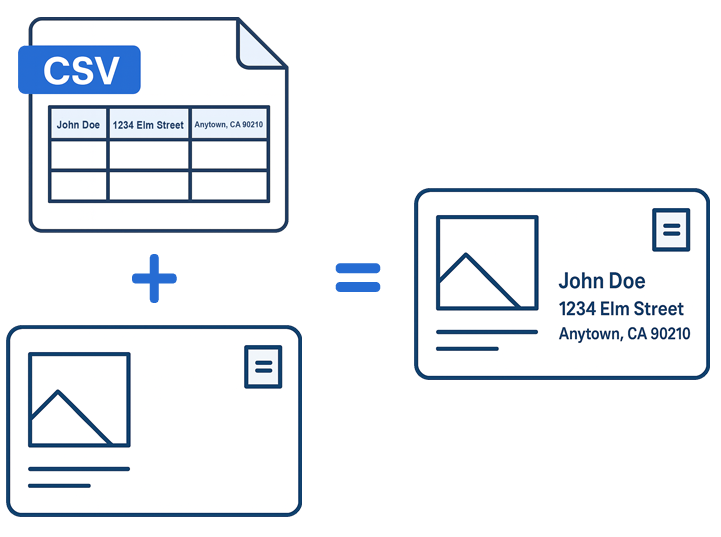
File Splice’s mail merge tool takes a CSV and a PDF or JPG template and produces a personalized file for every row in the spreadsheet. No Word. No Outlook. No dependencies. And it integrates directly with the imposition tool, so if you’re printing a batch of personalized postcards or name badges, you can merge and impose in a single step — something neither Acrobat nor Word can do.
For anyone doing event programs, name tags, form letters, bulk statements, or personalized mailers, this is a significant practical difference.
Frequently Asked Questions
No. Adobe Acrobat does not support PDF imposition, which is the process of laying out multiple files N-up, step and repeat, or in cut-and-stack format on a single print-ready sheet. To do that in Adobe’s ecosystem you’d need a separate plugin or Adobe InDesign, which requires a more expensive Creative Cloud subscription and a much steeper learning curve. File Splice handles imposition as a core feature, included at $4.99/month.
Yes, File Splice has interactive demo pages for the collate and PDF splitter tools that you can try before signing up. For ongoing use, a full File Splice account is $4.99/month with no setup fees and access to all tools. Adobe Acrobat Reader (the free version) can view and annotate PDFs but does not let you combine or merge files — that requires an Acrobat Standard or Pro subscription.
Combining PDFs puts multiple documents together end-to-end into one file: page 1, then page 2, then page 3. Imposition goes further: it takes those pages or files and arranges them physically on a sheet, multiple items per page, in a layout designed for efficient printing. A print shop putting business card files into one PDF is combining. Laying 10 cards on a single 13×19″ sheet with crop marks and bleed is imposing. File Splice does both.
Absolutely, and many users do. A common workflow is using File Splice for combining, imposing, and preparing files for print, then using the free Adobe Acrobat Reader to review, annotate, or share the finished PDF. If you occasionally need to edit text or add a certified signature, keeping Reader alongside a File Splice subscription covers both bases without paying for a full Acrobat Pro plan.
More Tools Inside File Splice
The imposition and collate tools are only part of what’s included. Every tool below is available on the same $4.99/month plan, with no add-ons or upgrades required.
Upload a CSV and a PDF or JPG template to generate a personalized file for every row. No Word, no Outlook, no dependencies.
Learn more →Drag, drop, and duplicate PDFs, JPGs, and PNGs into a single multi-page PDF. Mix file types, reorder pages, build bundles.
Try the demo →Break a multi-page PDF into individual pages. Extract one page, download all at once, or send straight into the collate tool.
Try the demo →Insert cover sheets, slip sheets, or divider pages into an existing PDF. Control exactly where they appear: every page or every X pages.
Learn more →Bottom Line
Adobe Acrobat is a powerful, mature tool built for PDF editing in the broadest sense. If you need to edit text, redact, sign, and OCR, it earns its price for the right user. But that user is probably in legal, compliance, or an enterprise environment where PDF editing is a daily core task.
For the print shop owner, the office admin, the teacher, the operations coordinator, the mailing house — the person who needs to combine, merge, organize, and prepare PDFs rather than edit them — Adobe Acrobat is a $240/year subscription where most of the product goes unused.
File Splice costs $4.99 a month, handles the combining and merging side better than Acrobat does, and adds imposition and mail merge capabilities that Acrobat doesn’t offer at any price.
Try File Splice Free
No setup charges, no contracts. Use the collate and split tools with a demo before you even sign up. Full access to all tools for $4.99/month — and free setup help to get your workflow running.
Get Started — It’s $4.99/mo →