
The Avery 5395 is the industry standard layout for adhesive name tags and badges. If you’ve ever peeled a name tag off a sheet at an event while surrounded by strangers, it was probably this size.
Here is everything you need to know about template 5395 in three points.
1. Avery Template 5395 Dimensions and Specs
- Dimensions: 2-1/3″ x 3-3/8″
- Layout: 8 per standard Letter (8.5″ x 11″) sheet, 2 across, 4 down.
- Page Margins (Side): 0.6875”
- Page Margins (Top/Bottom): 0.55”
- Horizontal Spacing (Gutter): 0.375”
- Vertical Spacing: 0.19”
- Key Feature: Known for its “peel-away” design and flexible material that moves with clothing so corners don’t curl up.
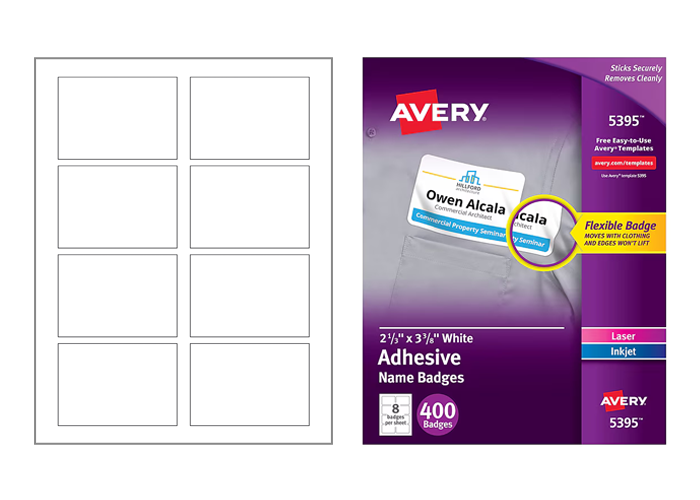
While 5395 is one of the most popular product numbers in the Avery family, this specific 8-up layout is compatible with several other templates, including 25395, 42395, 45395, 48395, 8395, 85395, 88395 and Presta 94366.
2. Template 5395 is a Native System Template in File Splice
Right when you log in, template 5395 is ready for you to use in the system templates section. Add it to your templates with one click, and you can start merging files 8-up in the 5395 layout immediately.
One of the most common ways people try to lay out files or information on the 5395 is in Word or Google Sheets. The main issue with both of these is managing margins and print settings; they can get a bit squirrely, making it tough to get a job done quickly.
Instead, use our template and upload your files to snap them into the 5395 template grid without hassle. File Splice lets you adjust quantities, add overages, create cover sheets, break labels to identify batches, and more without any trouble.
3. Batch Merging Name Tags (“Mail Merge” for Badges)
If you need to create name tags in bulk, you can easily generate hundreds or even thousands of unique name tags in the 5395 format. It’s simple. How to do it:
- Prepare Your Data: Create an Excel or Google Sheets list of the names. Put each name in a unique cell, all in one column. Save the file as a .CSV.
- Download the Blank Label: Download this single blank 5395 label in PDF form.
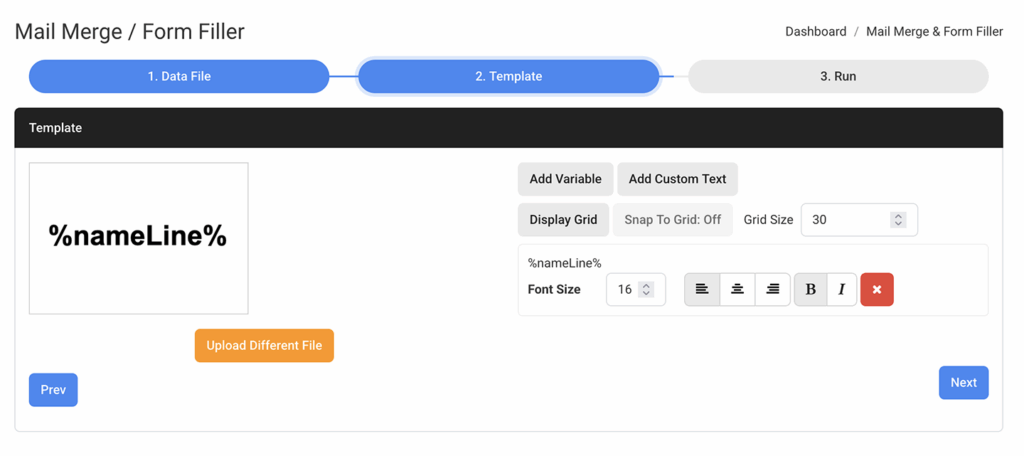
- Upload: Upload both your .CSV (step 1. Data File) and the blank 5395 PDF (step2. Template). In Step 2 of the process, click “Add Variable” to insert the name information. The add custom text allows you to add text that is static and will appear the same on all labels. For example a welcome message, event name or date.
- Select the Template: This is the final step in the mail merge tool. Select Avery 5395 and click start. Wait for your file to process, then download it.
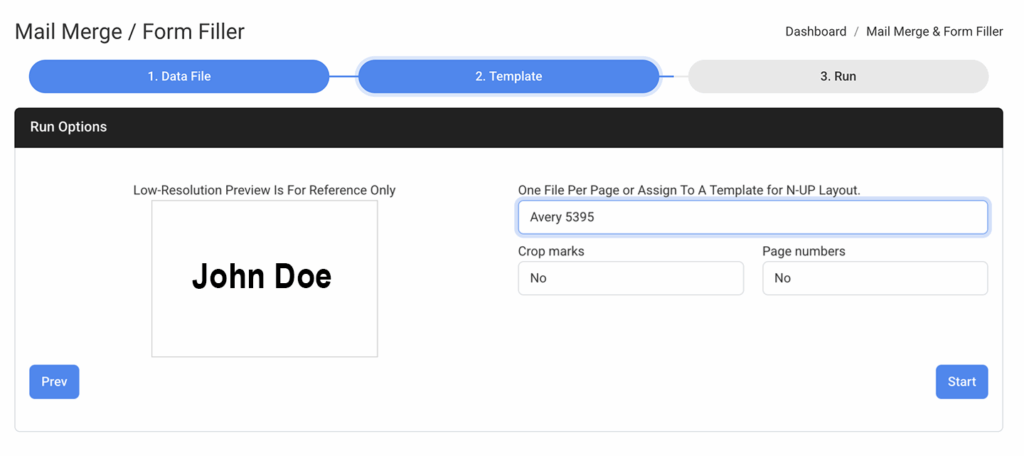
Important Note: In step three of the mail merge tool, ensure you select Avery 5395 and do not leave it set to “One per page.” If you leave it on “One per page,” you will generate a separate PDF file for every single name in your list.
Need a Hand? We’ve Got You Covered
The goal of File Splice is to make organizing files and printing projects easier. That’s why we offer free setup and support for all our users, just contact us. If you have questions about getting something set up or need a second pair of eyes on a project we are here to help.
Frequently Asked Questions about Avery 5395
What are the dimensions of Avery 5395 labels? The individual label dimensions are 2-1/3 inches wide by 3-3/8 inches tall.
What are the page margins for Avery 5395? The page margins are 0.6875 inches on the left and right sides, and 0.55 inches on the top and bottom.
How many labels are on an Avery 5395 sheet? There are 8 labels per standard Letter (8.5 x 11 inch) sheet. They are arranged in a grid of 2 across and 4 down.
What other templates are compatible with Avery 5395? The 5395 layout is an industry standard and is compatible with Avery product numbers 25395, 42395, 45395, 48395, 8395, 85395, 88395, and Presta 94366