
How to Combine Scanned Documents Into One
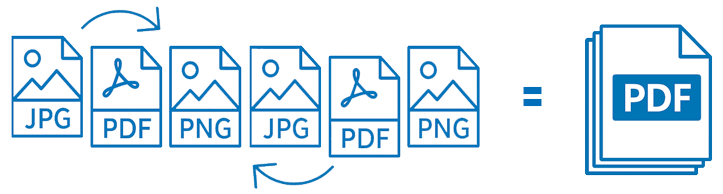
Have a pile of scanned JPGs or PDFs that need to become a single file? File Splice makes it fast, with no software to install and no complicated steps.
Whether you’re assembling a proposal, application, business account packet, or just cleaning up a project folder, File Splice’s Collate Tool handles the whole job right in your browser, no download required.
Four Simple Steps
Gather All Your Documents
Collect every file you want to merge into a single folder or location on your computer. Scanned pages are usually JPGs or PDFs, but it doesn’t matter which format, because File Splice seamlessly handles both, along with PNGs and HEIC files.
Drag & Drop Into the Collate Tool
Upload your documents by dragging them straight into your browser window, no installer or sign-in required to try it.
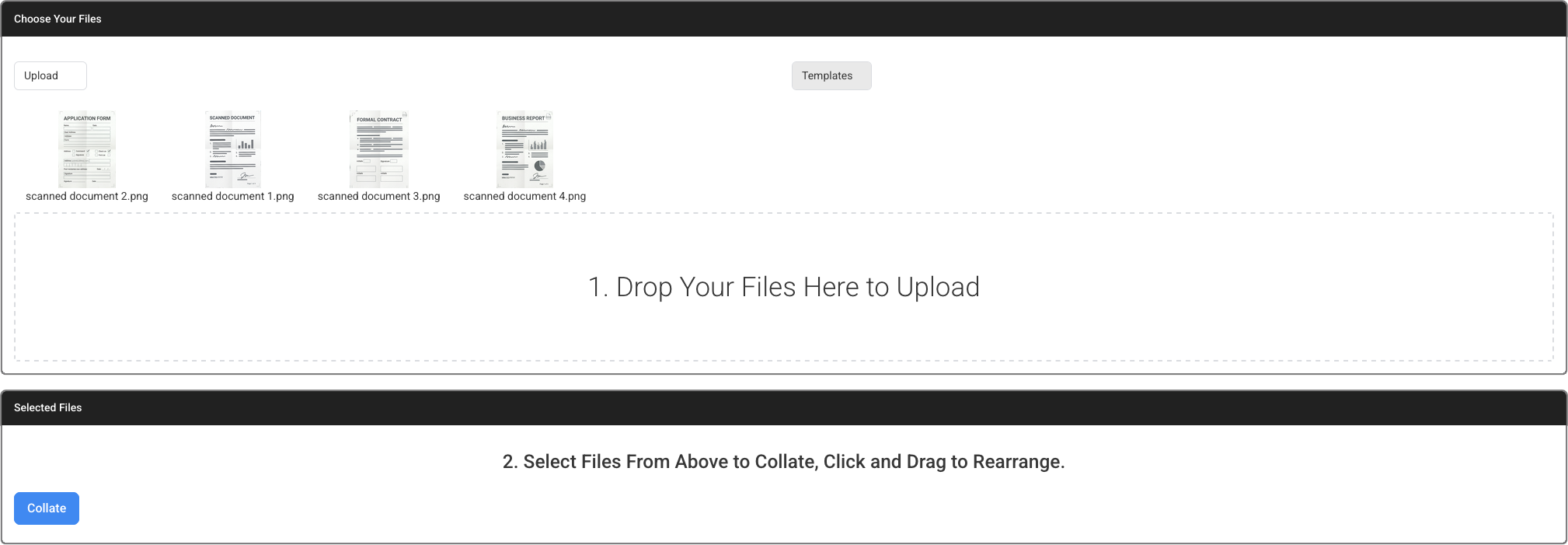
Click to Add Your Files in the Order You Want
Once uploaded, your documents appear as visual thumbnails above the drop zone. From there:
- Select your order: Click each thumbnail to add it to the new list below. That list represents the exact order your files will be combined.
- Left to right: The document on the far left becomes page one, the next becomes page two, and so on.
- Duplicate or rearrange: Click a thumbnail more than once to duplicate a page. Drag items in the lower list to rearrange them on the fly.
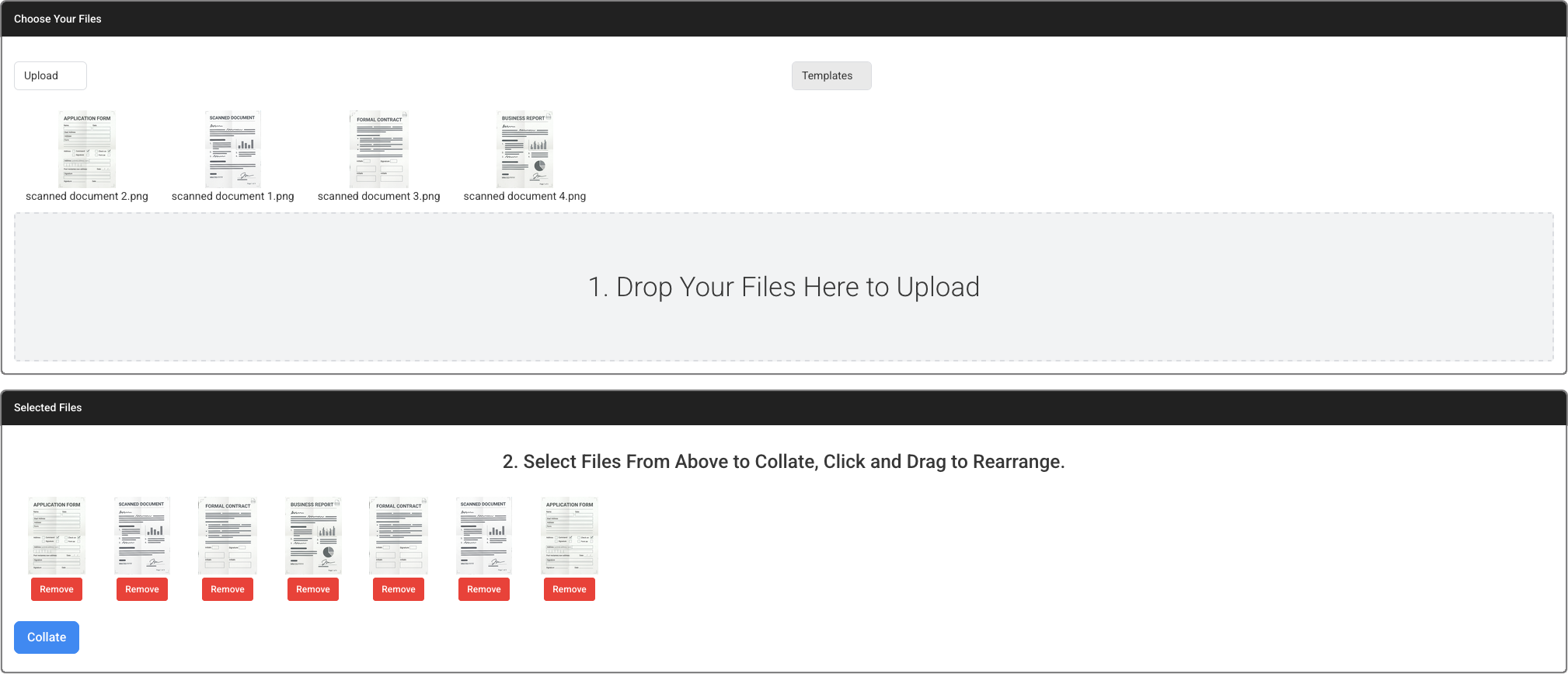
Click “Collate” and You’re Done
When everything looks right, hit the Collate button. File Splice instantly processes your pages and hands you a brand-new, multi-page PDF. That’s it.
Use the interactive demo to test it before you commit to anything.
Frequently Asked Questions
Can I use multi-page files?
Are there limits to how many files I can combine?
What file types can I upload?
What does it cost?
Do I need to download software or use a specific browser?
What if I need a specific page out of a multi-page file?
What if I have a crooked or sideways scanned page?
More Tools Inside File Splice
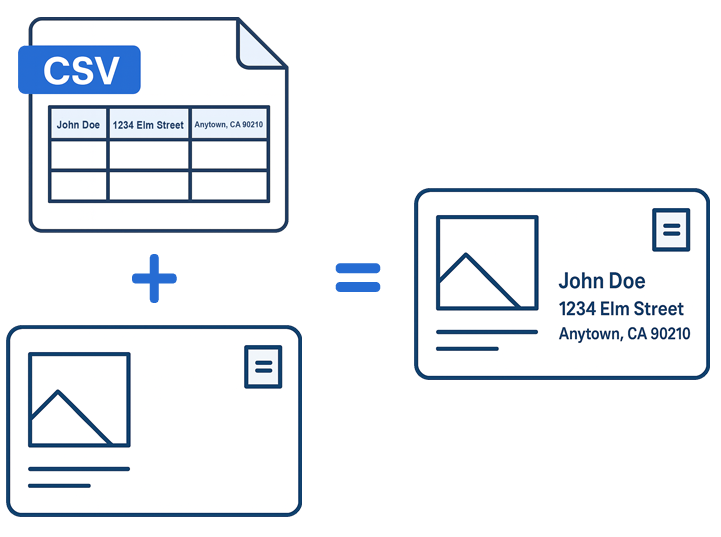
The Collate Tool is only part of what’s included. Every tool below is available on the same plan, with no add-ons or upgrades required. See current pricing.
Try File Splice Free
No setup charges, no contracts. Try the Collate Tool demo before you sign up. See our pricing page for full plan details, and free setup help is always included.
Get Started Today →