
Most standard email providers cap attachments at around 20 to 25 megabytes. When you’re dealing with high-quality PDFs, image-heavy presentations, or multi-page scanned documents, you can cross that limit incredibly fast.
So, what do you do if you don’t want to compress it to death or send it as a Google Drive or Dropbox attachment?
The easiest solution? Break it down and send it in smaller, manageable batches using our splitter and collate tools. Bonus because you can exclude irrelevant pages or omit pages that have sensitive information.
A Real World Example: What To Do If Your PDF Is Too Large To Email
You are a real estate agent who just compiled a massive, 40 page closing document for your home buyers. It includes the core contract, scanned addendums, and several pages of high-resolution property photos and maybe some buyer financial statements or letters.
The file size is way too big for your client’s inbox. Here is how you solve it in two simple steps:
Step 1: Break it apart with the PDF Splitter
Use the PDF Splitter.
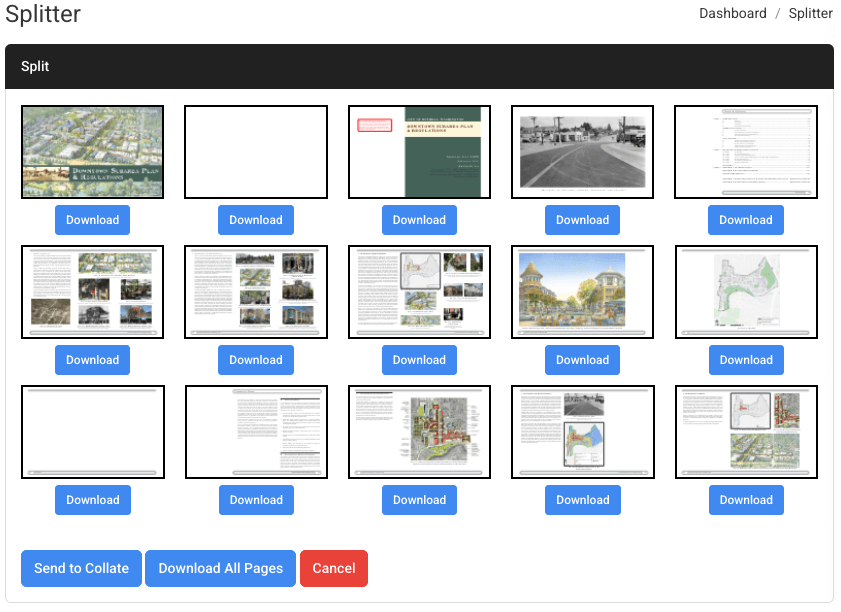
With a quick drag-and-drop, upload the document. The splitter separates each page and displays each one as a thumbnail. Click to download the pages you need or the whole document as a zip file containing each individual page.
Pro-Tip: There is a link to send pages right into the Collate tool from the Splitter tool for reorganization.
Step 2: Perfect the layout with the Collate Tool
Once you split the PDF, you might want to rearrange sections, duplicate pages, or add new files. That’s where the Collate Tool comes in.
The Collate tool takes PDF pages or multi page PDFs and allows you to:
- Click and drag to rearrange the pages or documents in the order you need.
- Insert image files like a JPG or PNG of that last-minute signed signature page.
- Merge everything into a brand-new, cleanly organized multi-page PDF.
Instead of sending one oversized, bloated file that gets rejected by the email server, you can now send two (or more) beautifully organized, perfectly sized PDFs. They slide right through the email server and land safely in your client’s inbox.
“Couldn’t I just zip the file or send it as a Google Drive attachment?”
Sure, those are options, but we like to present a cleaner alternative.
Often, you don’t actually need to send all 40 pages of a large document. Sometimes you just need to pare it down. Not only does that shrink the file size, but it eliminates confusion for the recipient.
Pro-Tip: Don’t send a client a 35-page file when you only need them to look at one specific page. Split the file, pull the exact page you need, and just send that.
Document Management Made Simple
Whether you’re a real estate agent handling closing disclosures, a creative professional sending design portfolios, a teacher putting together lesson packets, or just someone trying to get paperwork to a client, you don’t need to fight with email attachment limits.
With File Splice, taking total control of your digital paperwork is as simple as drag, drop, split, and merge.
Got a PDF that needs to lose a little weight? Give our PDF Splitter and Collate Tool a try today. Sign up for an account to get unlimited splitting, collating, full use of all our tools, and free support!